Lead Analysis
Learn how to analyze leads, find decision makers, and filter your prospects effectively
🕵️ Lead Analysis: Deep Dive into Your Prospects
Once you open a specific Collection, you enter the Lead Analysis view. This is where you transition from looking at "lists of companies" to connecting with "real people."
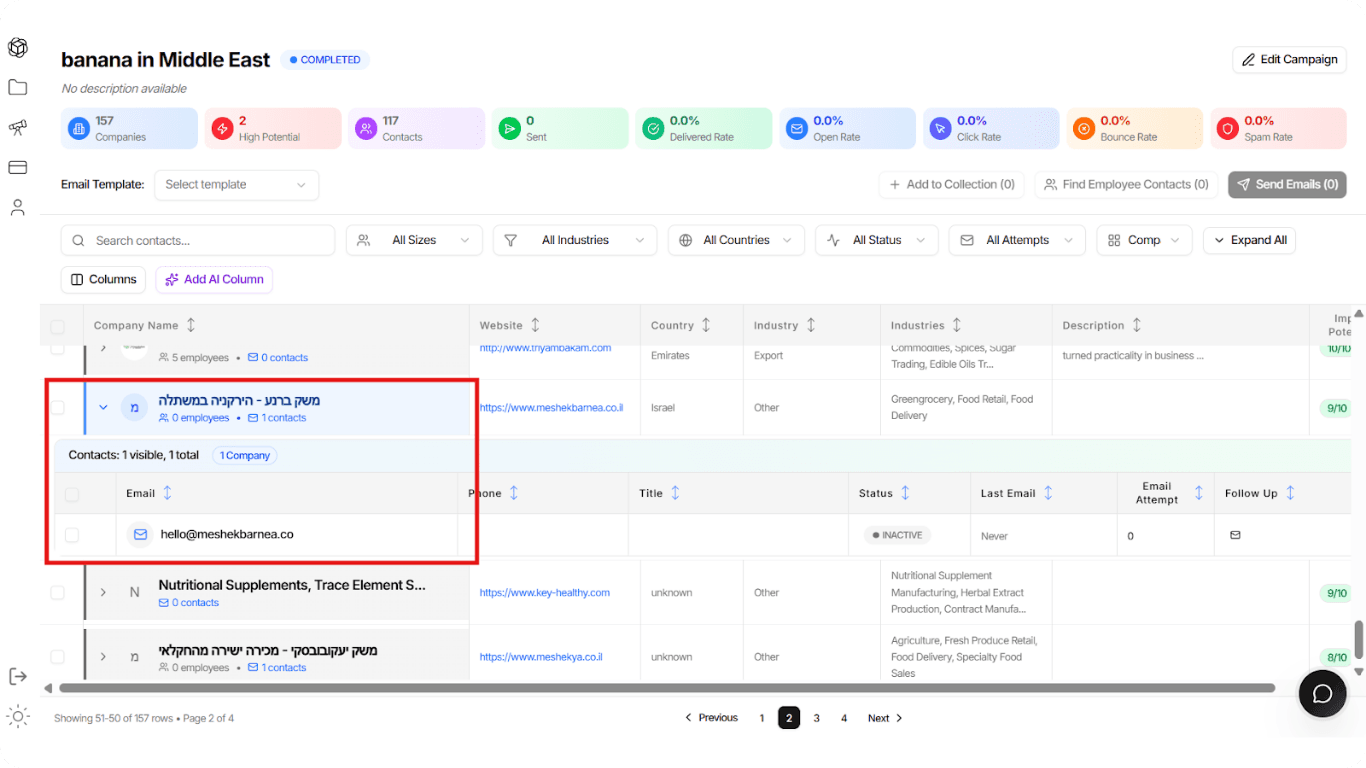
This view transforms your company list into actionable contact information, helping you reach the right decision-makers at each organization.
1. Accessing Decision Makers (The Dropdown)
You don't just want to email a generic info@company.com address. You want to reach specific employees.
Action: Click the small arrow icon (>) next to any Company Name.
The Result: This expands the row to reveal specific contacts associated with that company. You can view their:
- Phone
- Title
- Status (e.g., Active/Inactive)

💡 Pro Tip
Always target specific decision-makers rather than generic email addresses. This significantly increases your response rate!
2. Advanced Filtering & Sorting
When managing hundreds of leads, you need to prioritize. Use the Filter Bar at the top of the table to slice your data.
Demographic Filters
All Countries: Narrow down your list to a specific region (e.g., "Israel" or "Emirates").
All Sizes: Filter by company size (Employee count) to decide if you want to target SMBs or large Enterprises.
All Industries: Isolate specific niches (e.g., "Food & Beverages" vs. "Wholesale Trade").
Combine multiple filters to create highly targeted lead lists for your campaigns.
3. Campaign Tracking Filters (Crucial for Follow-ups)
As your email campaign progresses, you need to know who has responded and who needs a nudge. EximGPT provides specific filters for this:
Email Status
Filter by:
- Sent: Emails that have been dispatched
- Opened: Recipients who opened your email
- Clicked: Recipients who clicked links in your email
Use this to gauge interest and prioritize follow-ups.
Email Attempts
Filter by how many times you have contacted them:
- 0 Attempts: Fresh leads you haven't emailed yet
- 1-2 Attempts: Leads that may need a follow-up
- 3+ Attempts: Leads requiring different strategies
💡 Use Case
Quickly filter for "0 Attempts" to find fresh leads you haven't emailed yet!
4. Customizing Your View
Sorting
Click on any column header (like Company Name or Potential) to sort the list:
- Alphabetically
- By relevance
- By potential score
Columns
Click the Columns button to hide or show specific data points relevant to your workflow.
💡 Best Practice
Customize your view to show only the information you need. This reduces clutter and helps you focus on what matters most for your sales process.